Challenge Module
Create challenges, approve or reject the performance members submit, see top performers and teams, and select a winner to close a challenge.
Create Challenge
-
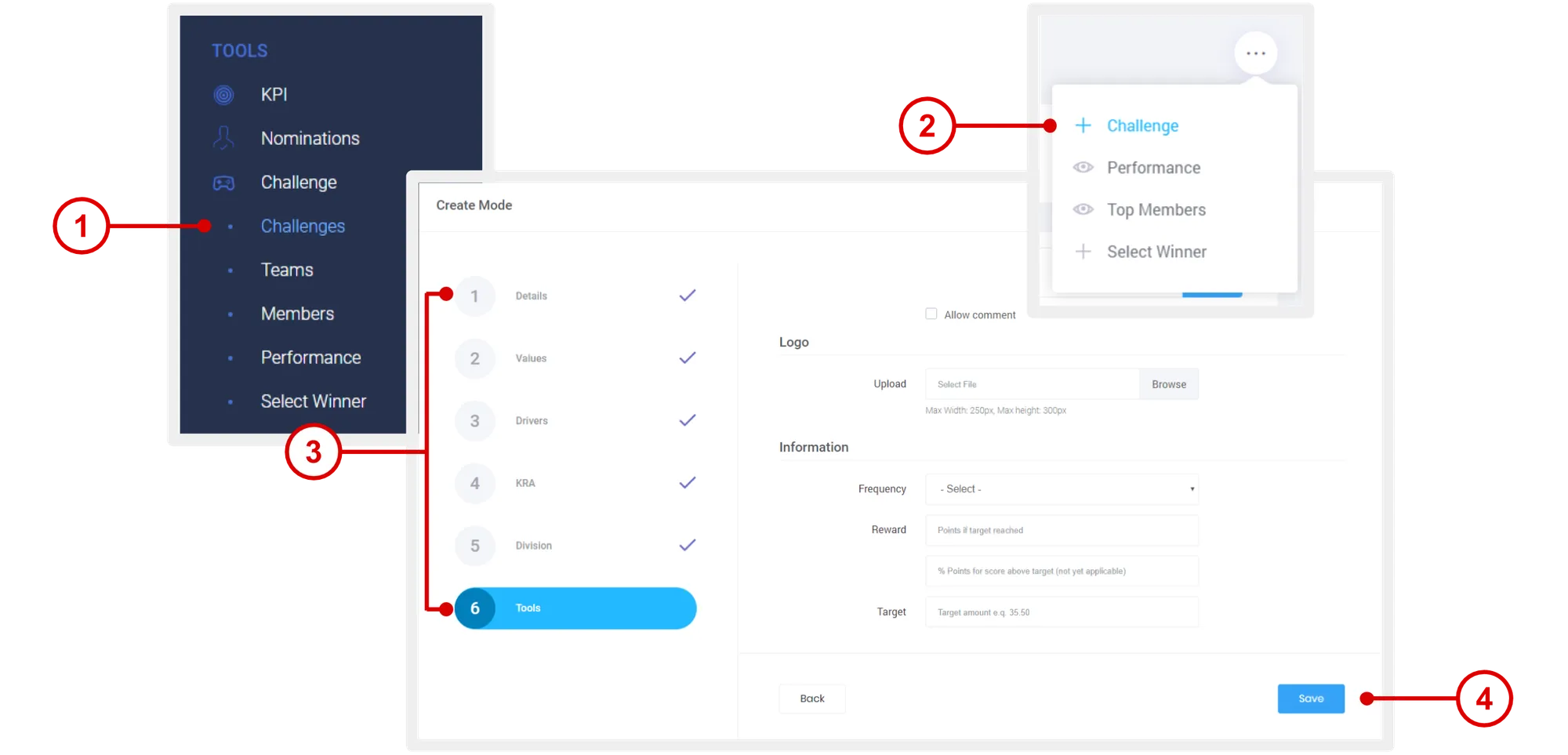
On the left navigation menu, click Challenge > Challenge.
-
Mouse over the menu option and click + Challenge.
-
Enter the necessary details:
-
Details: Title and description of the challenge.
-
Values: Tie in your org context.
-
Drivers: Tie in your org context.
-
KRA: Tie in your org context.
-
Unit: Make this challenge exclusive for specific groups or units.
-
Tools:
- Allow Comment: Check this box to allow commenting in the activity feed for members.
- Upload: Add a challenge image (displayed on Challenge page for members).
- Frequency: Assign group managers to administer activities relating to this challenge.
- Reward: Enter points to be earned by members for approved performance.
- Target: Enter the target figure to be met by members.
-
-
Click Save.
Access Challenge
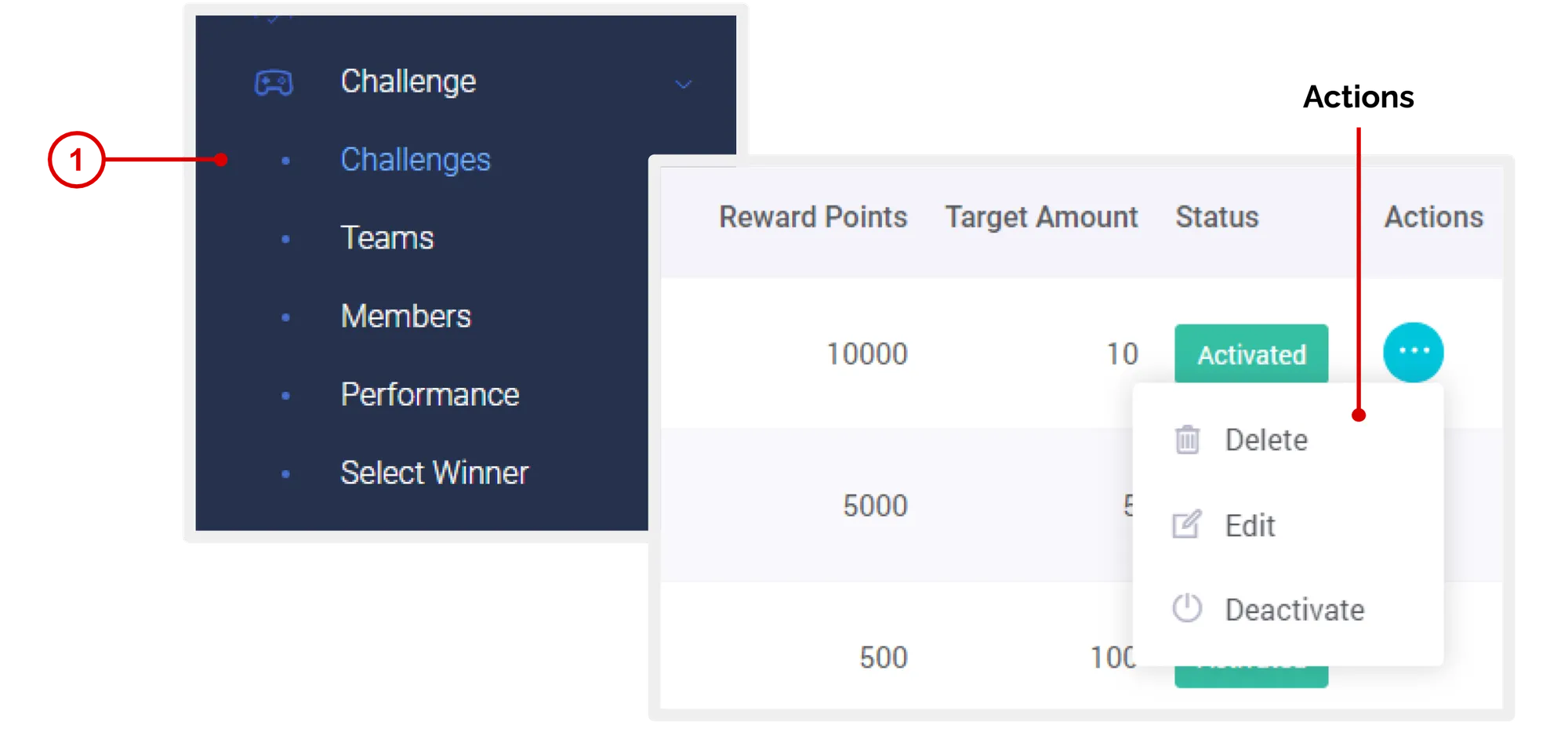
- On the left navigation menu, click Challenge > Challenges.
This page displays all Challenge created.
Actions
- Delete: Click to delete the challenge completely from the program.
- Edit: Click to edit the engagement mode.
- Deactivate: Click to turn off the challenge.
View Submitted Performance
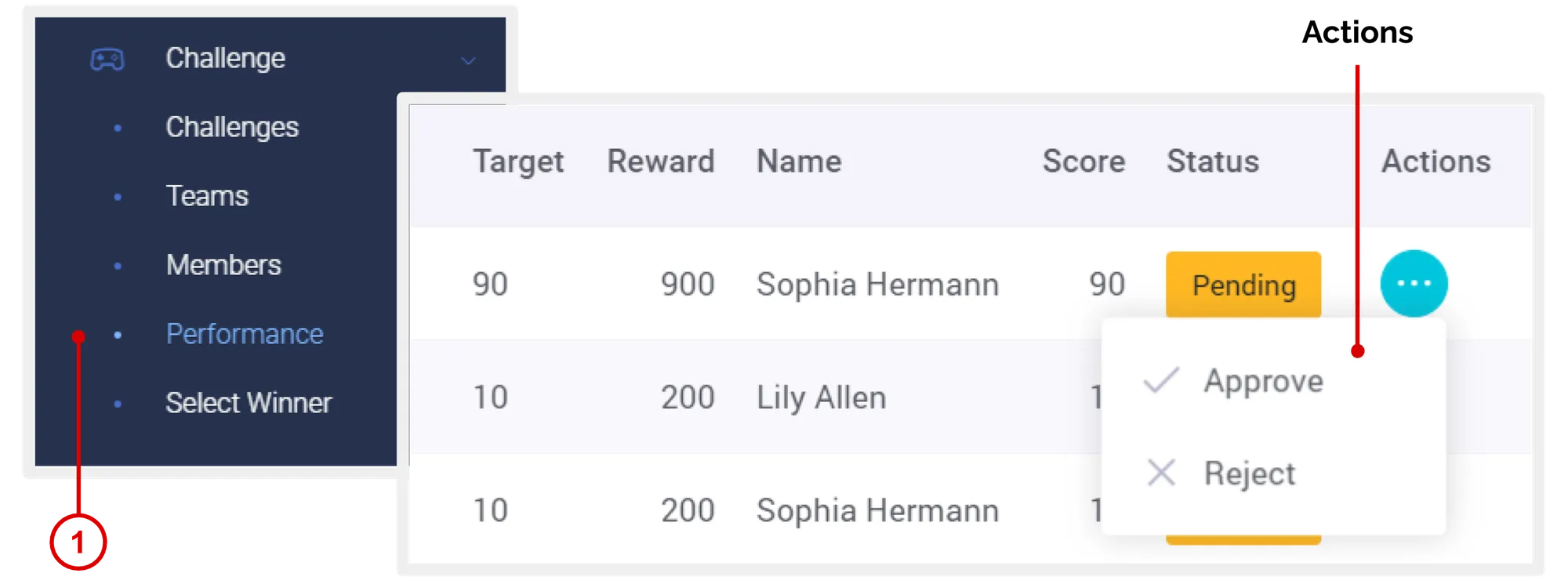
- On the left navigation menu, click Challenge > Performance.
This page displays all submitted performance for various challenge.
Approve or Reject Submitted Performance
- On the Performance page, under “Actions” column, click Approve or Reject.
Actions
- Approved: System auto allocates the rewards associated with the challenge to the member (or submitter).
- Rejected: Nothing happens.
Top Performers
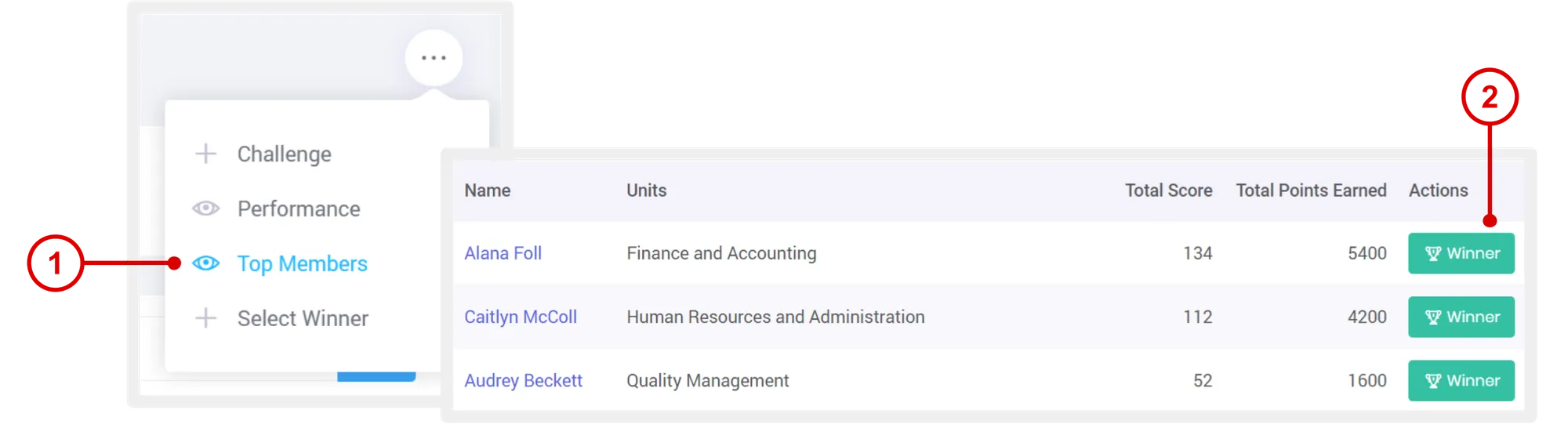
- On the Challenge list page, mouse over the menu options , click Top Members.
This page displays top members based on the highest earned points. On this page, you can also select a winner for a challenge. - To select a winner, click Winner under “Actions”.
Teams Participating in Challenge
- On the left navigation menu, click Challenge > Teams.
This page displays teams participating in one or more challenge.
Members Participating in Challenge
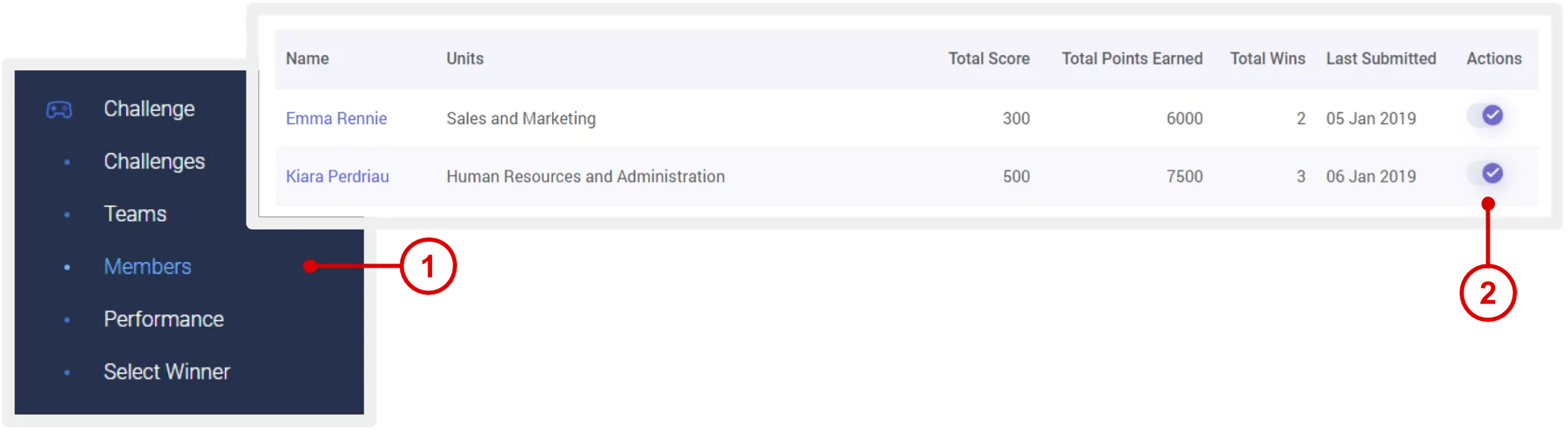
- On the left navigation menu, click Challenge > Members.
This page displays members participating in one or more challenges.
Remove Participants
- On the left navigation menu, click Challenge > Members.
- Under “Actions” column, click the Disable Access.
Select a Winner
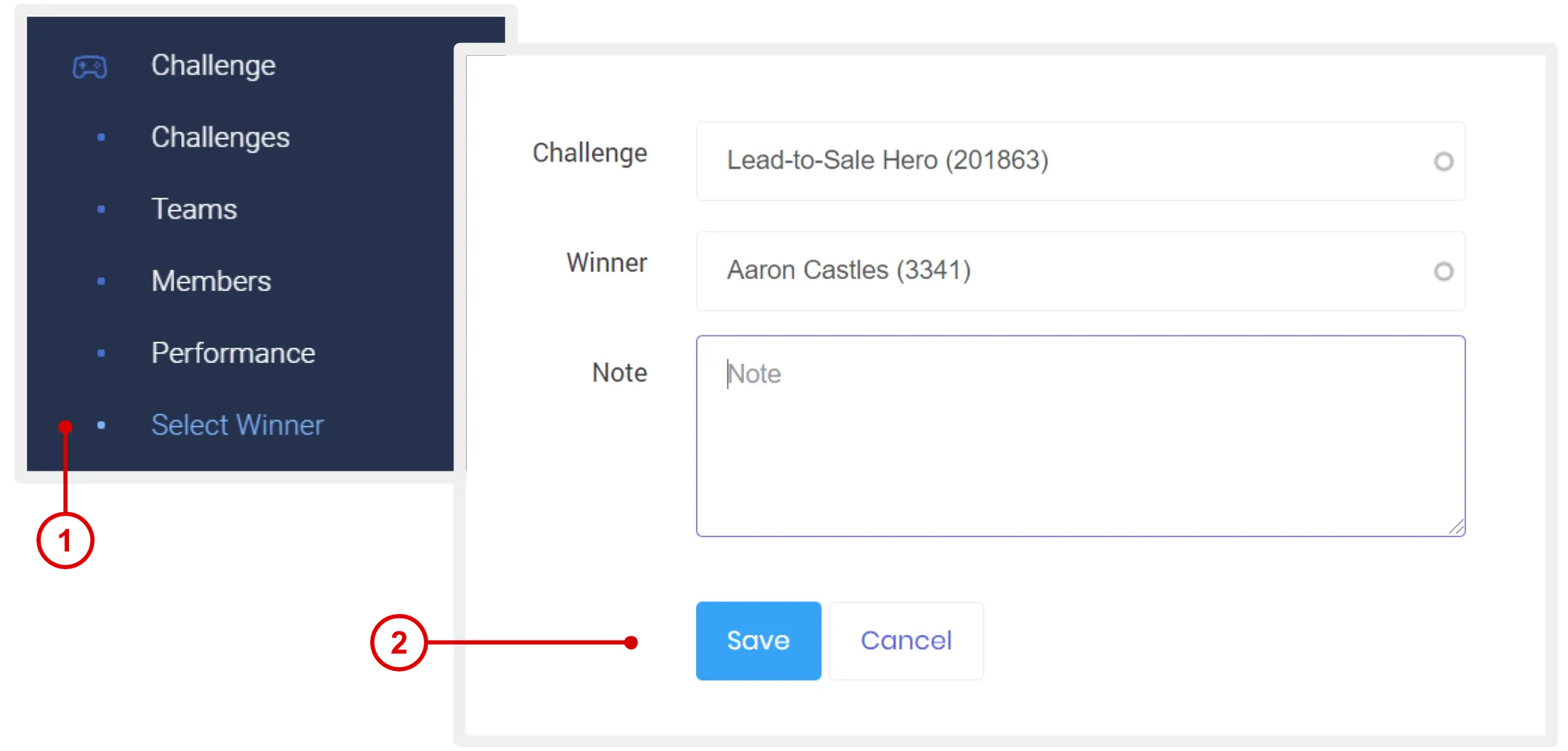
- On the left navigation menu, click Challenge > Select Winner.
- Select a challenge > select a member > enter a message > click Save.
Once saved, performance can no longer be submitted for that challenge. Challenge is completed.
Need more help?
For questions about setting up or running your program, email hello@rewardco.com.