Referral Module
Create referral offers with points or cash rewards, approve or reject the referrals members submit, and set up custom referral statuses.
Create Referral Offers
-
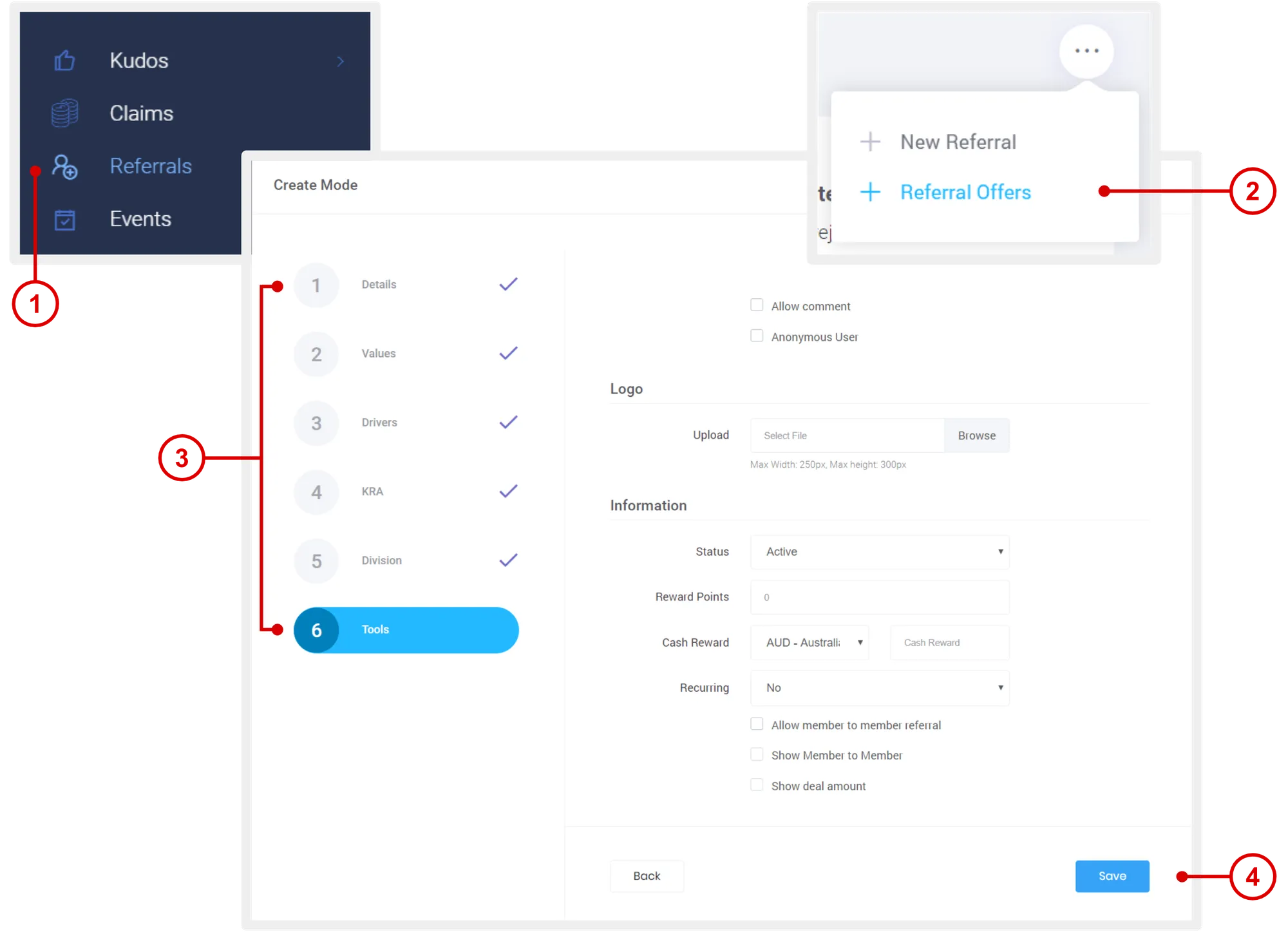
On the left navigation menu, click Referrals.
-
Mouse over the menu option and click + Referral Offers.
-
Enter the necessary details:
-
Details: Title and description of the offer.
-
Values: Tie in your org context.
-
Drivers: Tie in your org context.
-
KRA: Tie in your org context.
-
Unit: Make this offer exclusive for specific groups or units.
-
Tools:
- Allow Comment: Check this box to allow commenting in the activity feed for members.
- Logo: Offer image (displayed on offer page for members).
- Status: Active means offer can be accessed by members. Inactive means offer cannot be accessed. You can change active status by editing the offer.
- Reward Points: Enter points to be earned by member for submitting referral on this offer.
- Cash Reward: Enter cash to be earned by member for submitting referral on this offer.
- Recurring: Select an option if reward is not one-off.
- Allow member to member referral: If checked, members can send referrals to other members in the program.
- Show member to member: Display referrer and recipient in referral full details page.
- Show deal amount: If checked, deal amount can be seen by the referrer and the recipient.
-
-
Click Save.
View Submitted Referrals
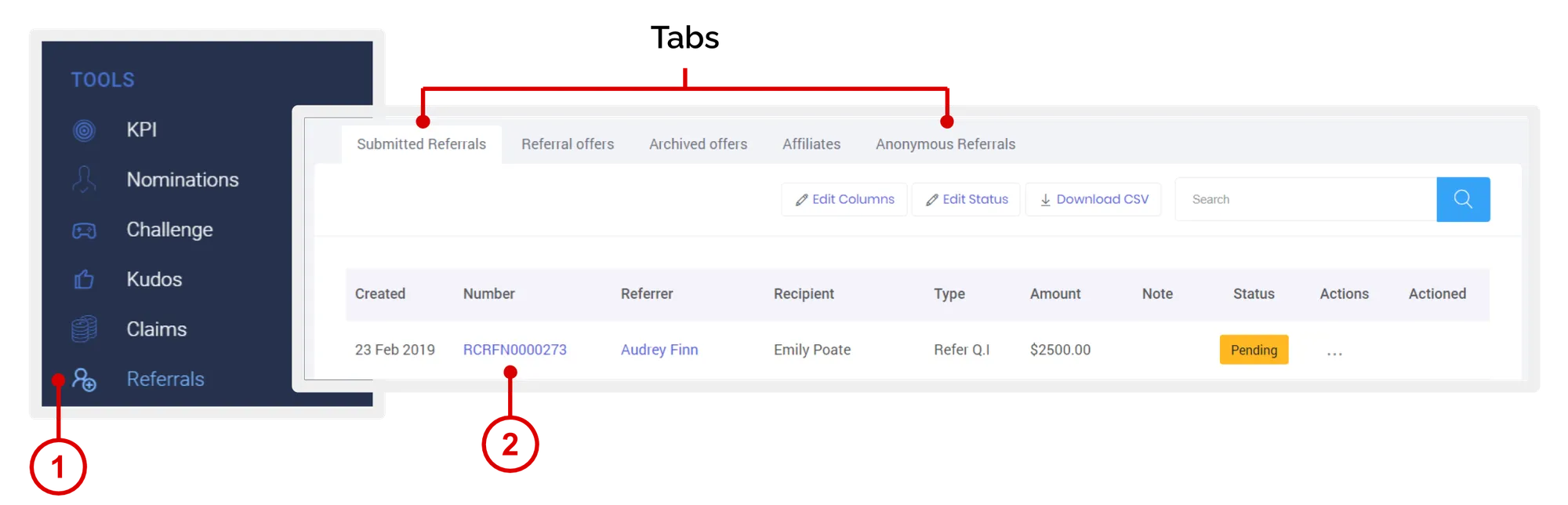
- On the left navigation menu, click Referrals.
- Click on a Referral Number to view full details of the referral.
Tabs
- Submitted Referrals: Referrals submitted by members in the program.
- Referral offers: Referral offers created by company admin made available to members.
- Archived offers: Referral offers that have been turned off and not available to members
- Affiliates: coming soon.
- Anonymous Referrals: Referrals submitted by anonymous users, that is, users not logged in.
Approve or Reject Submitted Referrals
- On the Submitted Referrals page, under “Actions” column, click Approve or Reject.
Actions
- Approved: System auto allocates the rewards associated with the referral offer to the member.
- Rejected: Nothing happens.
When you click on an action, the system will ask you to confirm the action, and you will be able to add a note before confirming. This note is visible to the company admin only, and can be viewed when you access the full details of a submitted referral.
Reorder, Create, Edit Referral Status
-
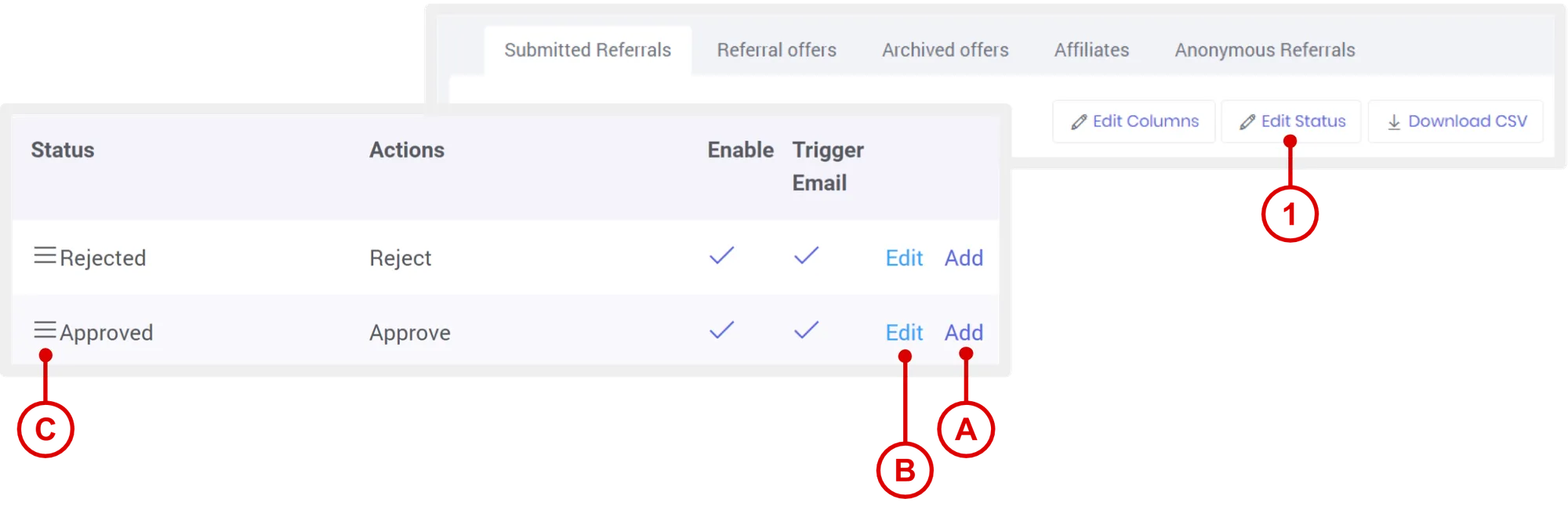
On the Submitted Referrals page, click Edit Status.
- To create custom referral status, click Add.
- To edit the label of an existing status, click Edit.
- To reorder, simply drag up or down.
Need more help?
For questions about setting up or running your program, email hello@rewardco.com.