Claims Module
Create claim campaigns, approve or reject submitted claims with a private note, and edit, archive or restore campaigns for your members.
Create Claim Campaigns
-
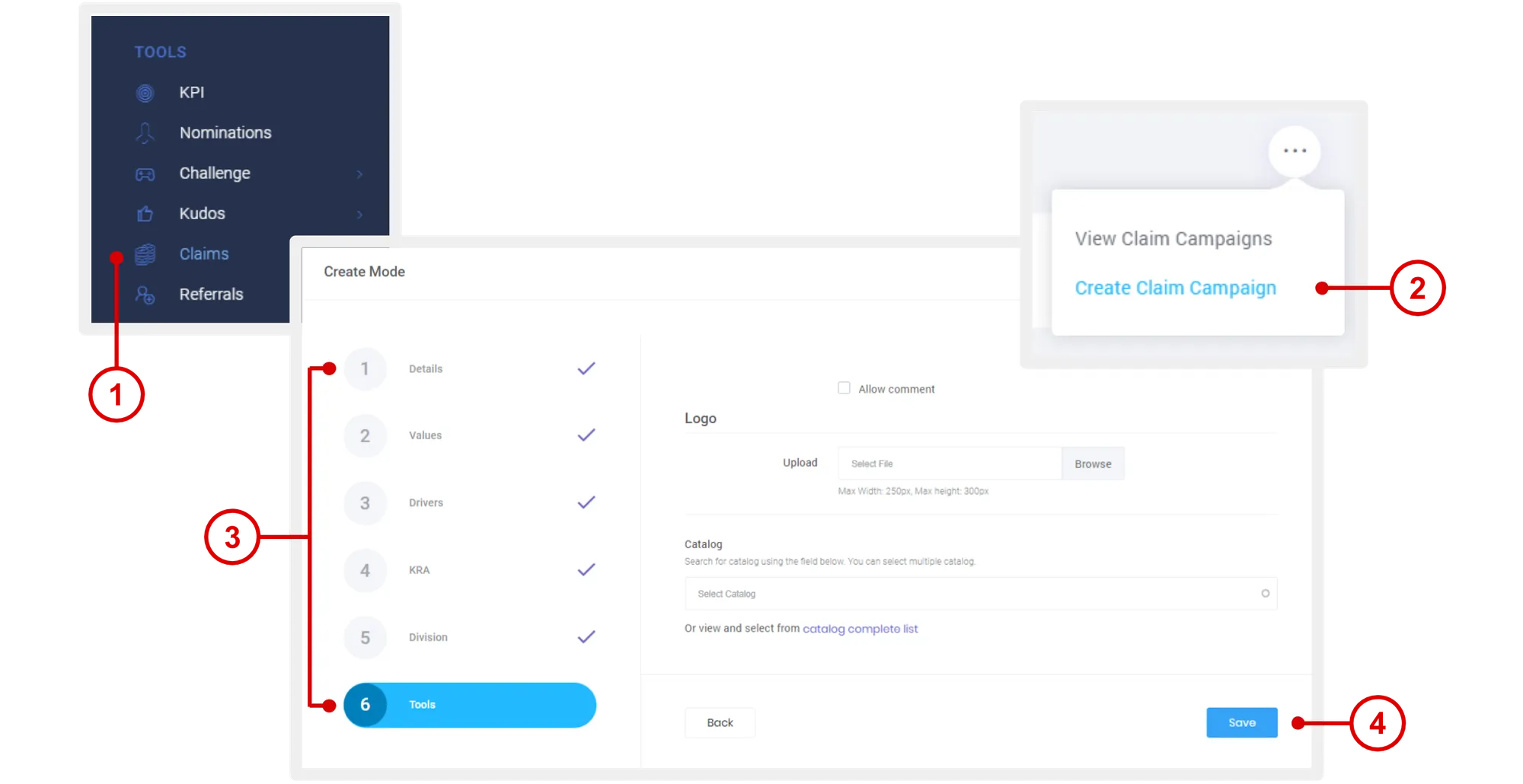
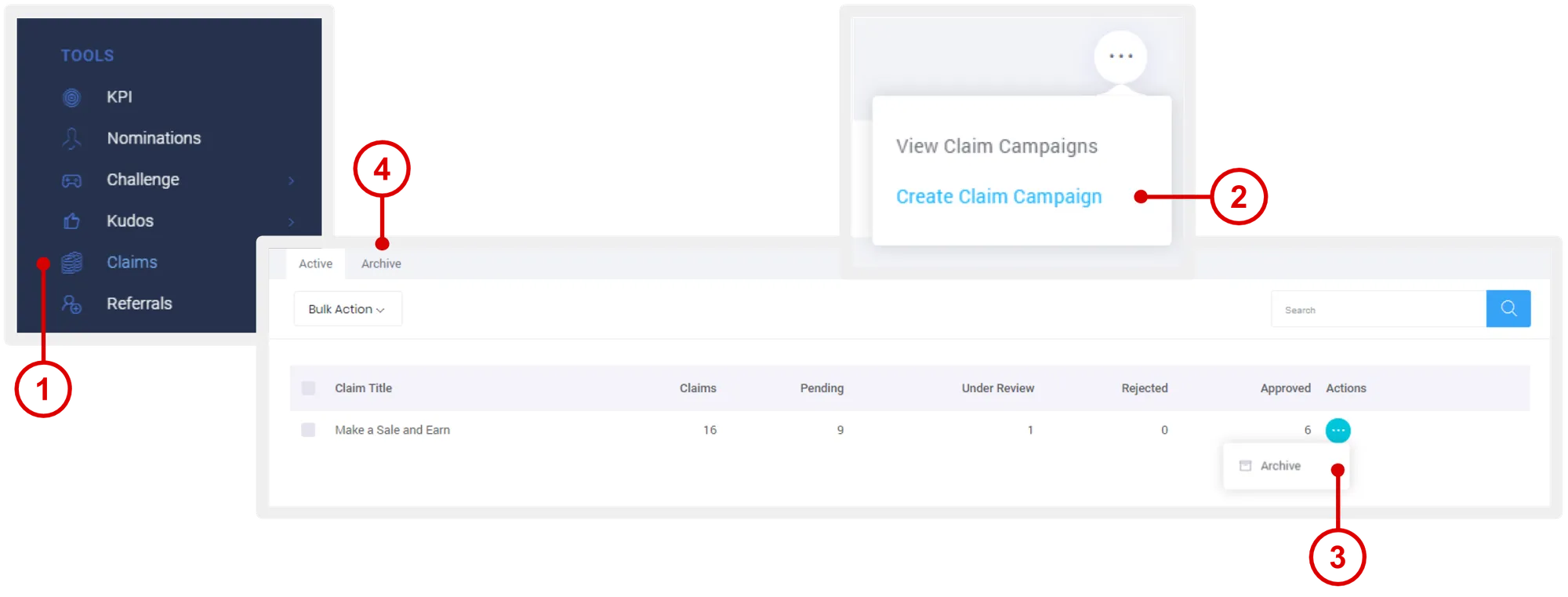
On the left navigation menu, click Claims.
-
Mouse over the menu option and click Create Claim Campaign.
-
Enter the necessary details:
-
Details: title and description of the claim campaign.
-
Values: tie in your org context.
-
Drivers: tie in your org context.
-
KRA: tie in your org context.
-
Unit: make this claim campaign exclusive for specific groups or units.
-
Tools:
- Allow Comment: Check box to allow commenting in the activity feed for members.
- Logo: upload an image for this campaign (displayed on claims page for members).
- Catalog: select claims catalog. To create catalogs, see “Catalogs” section of this manual.
-
-
Click Save.
View Submitted Claims
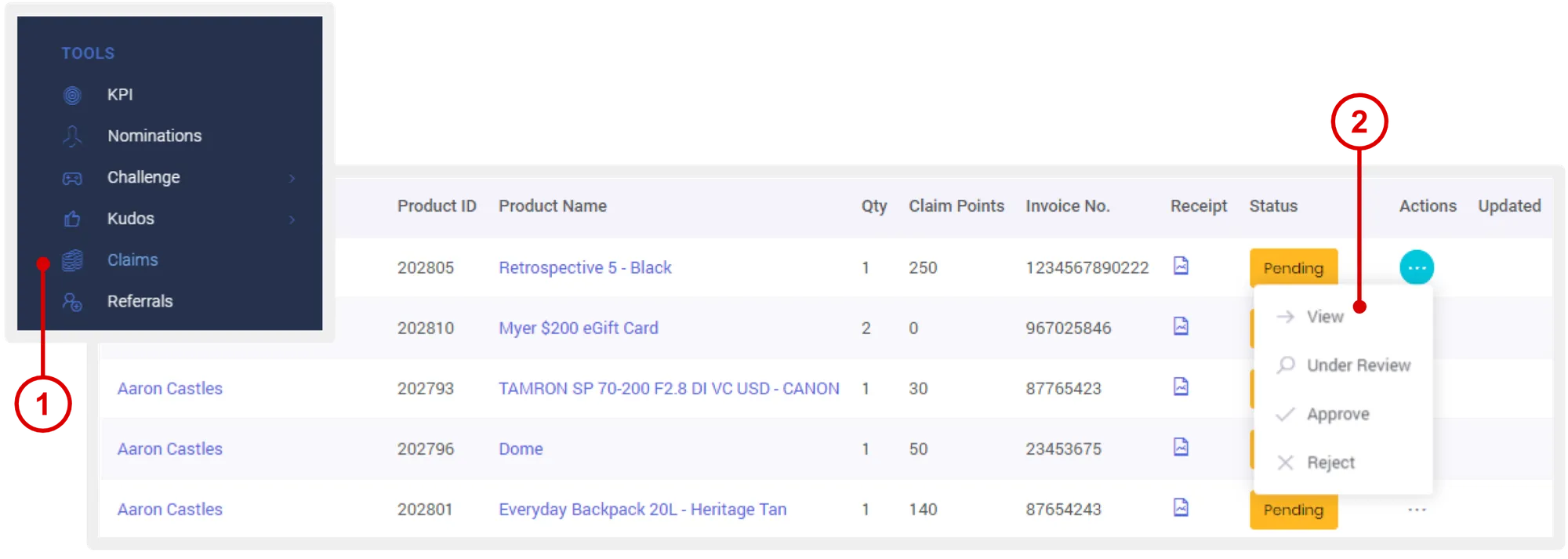
- On the left navigation menu, click Claims.
- Under “Actions” column, click View to view the full details of a submitted claim.
Approve or Reject Claims
-
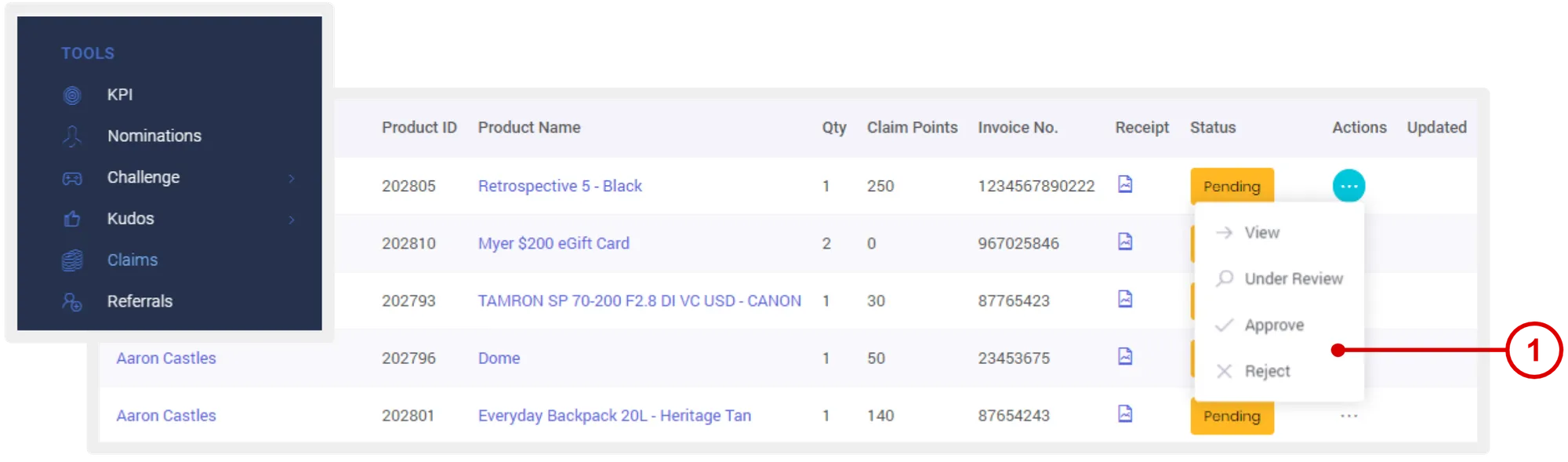
On the Claims page, under “Actions” column, click Approve or Reject.
- Approved: System auto allocates the rewards associated with the campaign to the member.
- Reject, Under Review or Pending: Nothing happens.
When an action is selected, you will be able to add a note before confirming the action. This note is visible to the company admin only and can be viewed when you access the full details of a submitted claim.
View Claim Campaigns
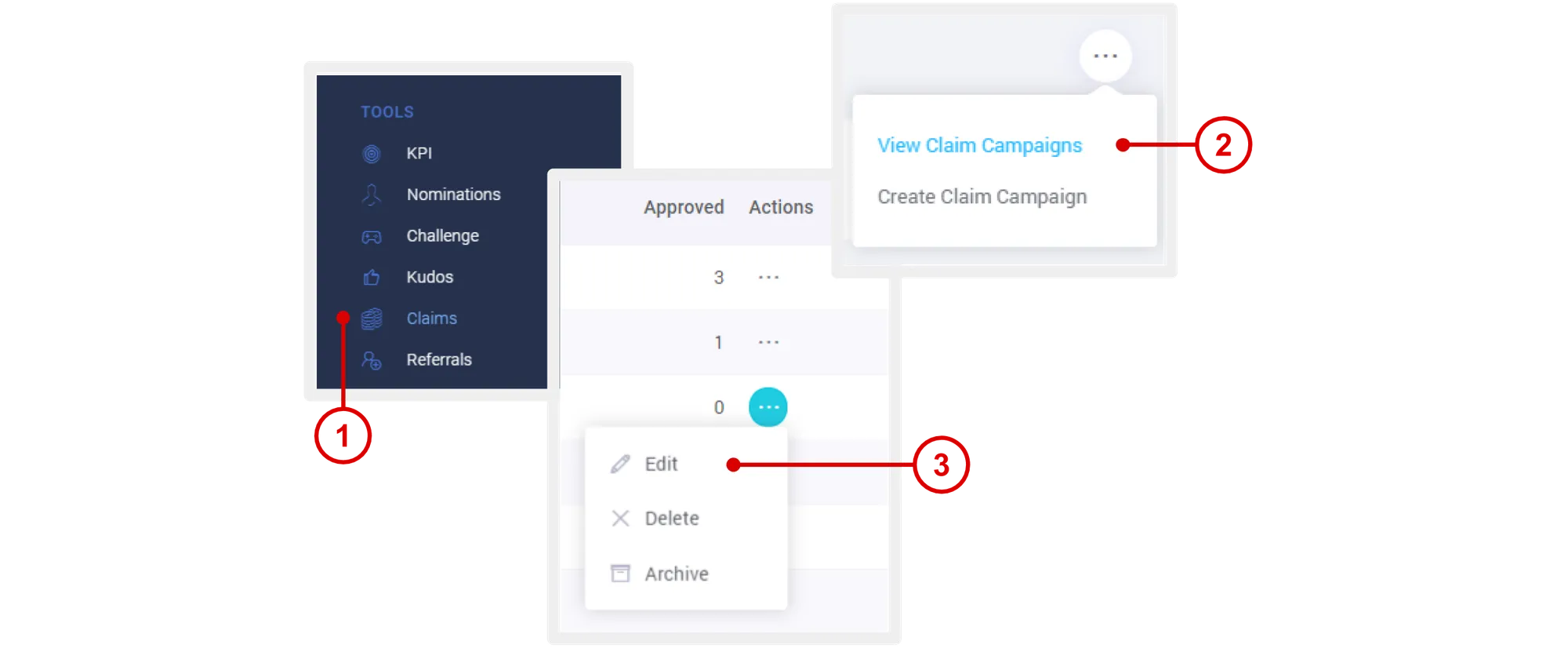
- On the left navigation menu, click Claims.
- Mouse over the menu option and click View Claim Campaigns.

Edit Claim Campaign
- On the left navigation menu, click Claims.
- Mouse over the menu option and click View Claim Campaigns.
- Under the “Actions” column, click Edit.
Only campaigns with zero submitted claims can be edited.
Turn Claim Campaign On or Off
- On the left navigation menu, click Claims.

- Mouse over the menu option and click View Claim Campaigns.
- Under “Actions” column, click Archive.
When a campaign is archived, members cannot view or submit a claim for that campaign. - To turn on campaign, visit the Archive tab. Under “Actions” column, click Restore.
When a campaign is archived, members cannot view or submit a claim for that campaign.
Need more help?
For questions about setting up or running your program, email hello@rewardco.com.