KPI Module
Create KPIs with targets, frequency and reward points, manage active and archived KPIs, and record performance for one or many employees.
Create KPI
-
On the left navigation menu, click KPI.
-
Mouse over the menu option and click New KPI.
-
Enter the necessary details:
-
Details: Title and description of the KPI.
-
Values: Tie in your org context.
-
Drivers: Tie in your org context.
-
KRA: Tie in your org context.
-
Unit: Make this KPI exclusive for specific groups or units.
-
Tools:
- Target: Enter the target figure to be met by members.
- Frequency: How frequent this KPI should this.
- Start Date: KPI start date.
- End Date: KPI end date.
- Reward Points: Enter points to be earned by members who meet the target, % points for members who perform above the target, and points for those who do not reach the target.
-
-
Click Save.
Access KPIs
- On the left navigation menu, click KPI. Once opened, you will be presented with a list of active KPIs.
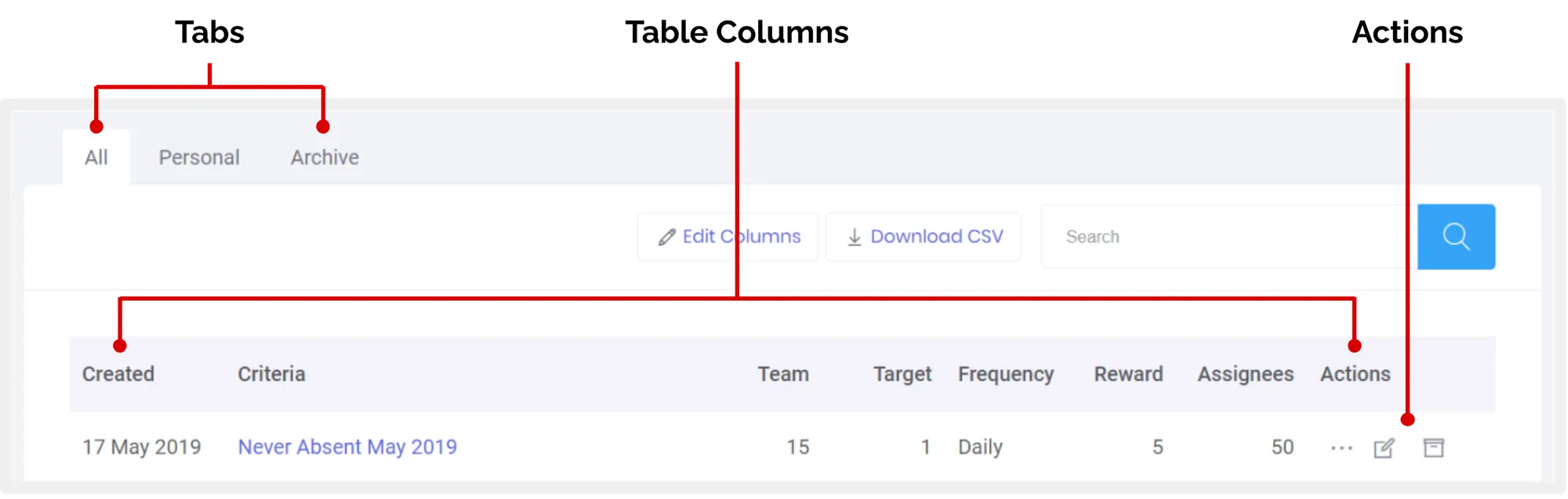
Below is an explanation of the tabs on this page:
- All: Displays all KPI modes created.
- Archive: Displays all KPI modes that have been archived. When a KPI is archived, members cannot submit a performance for that KPI.
- Personal: View and track members’ self-managed KPIs that have been made available to you.
Below is an explanation of the columns on this page:
- Created: Date the KPI engagement mode was created.
- Criteria: Name or title of the KPI engagement mode. Clicking on the KPI name leads you to the frequency list, wherein you can choose to enter or update performance.
- Team: Total number of teams assigned to the KPI.
- Target: Figure to be met by employees (whole numbers only).
- Frequency: How often this KPI should run.
- Reward: Total number of reward points attached to the KPI engagement mode, earned by a member if the member meets the target.
- Assignees: Combined total number of members in the teams/units assigned to the KPI.
Below is an explanation of the actions on this page:
- Edit KPI: Click to edit the KPI details.
- Archive: Click to push KPI to the archive tab.
Update Employee Performance
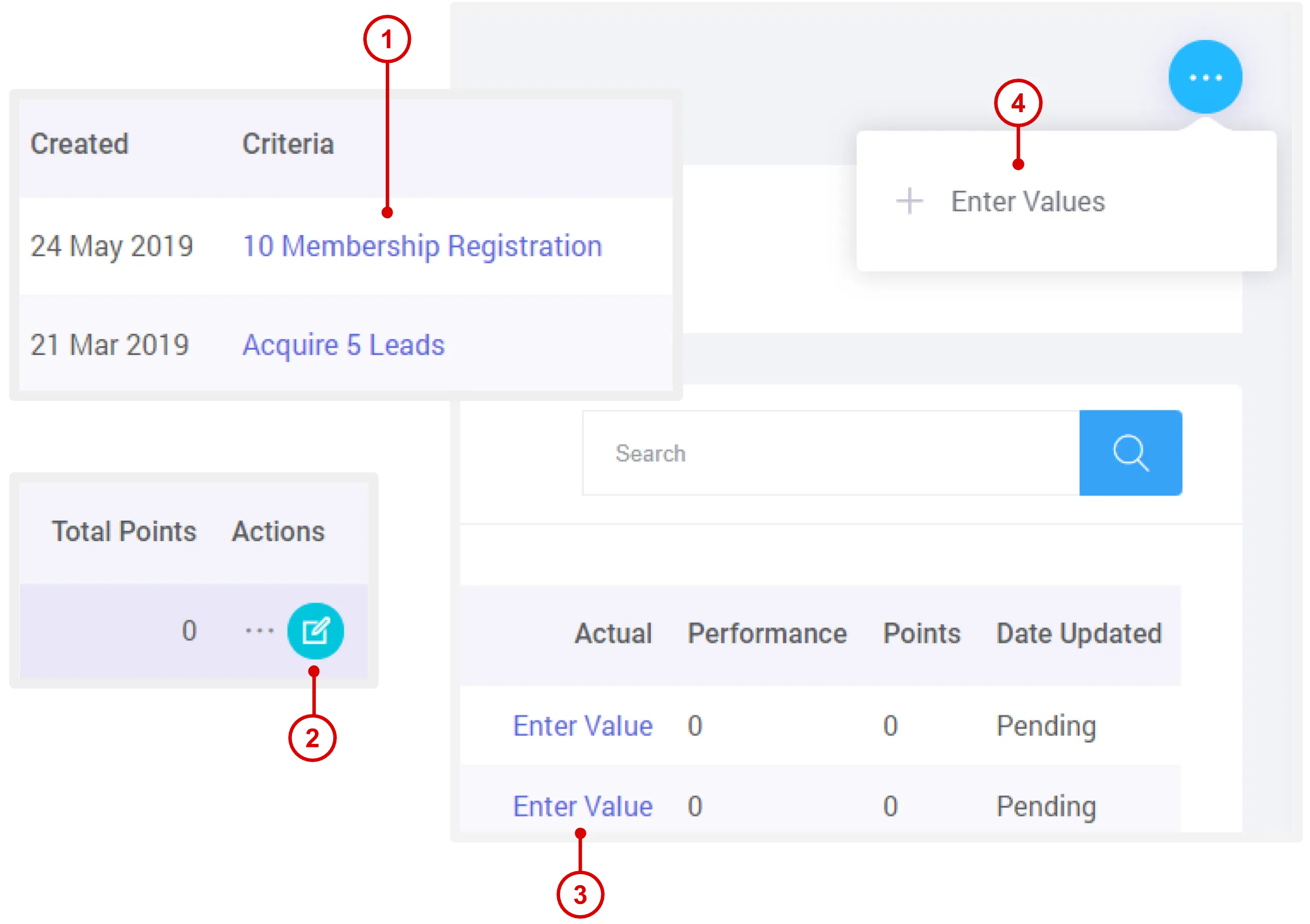
- On the “KPI” page, under “Criteria” column, click the KPI title.
- Under “Actions”, click Edit Performance.
- Under “Actions”, click Enter Value to record individual employee performance.
- To record multiple employee performance, click Enter Values under the menu option.
Need more help?
For questions about setting up or running your program, email hello@rewardco.com.