Events Module
Create events with a date, time and points reward, choose which units can join, and mark attendance to award points to attendees.
Create Events
-
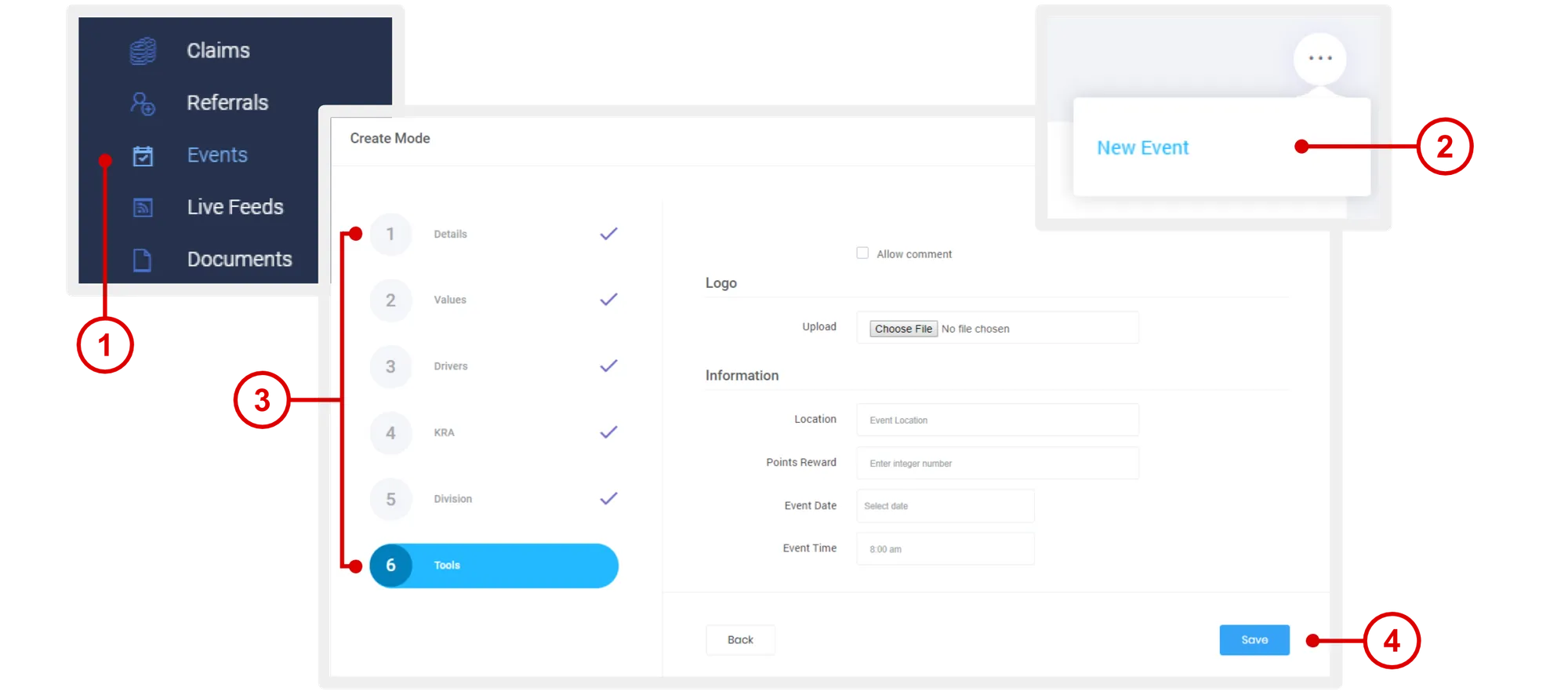
On the left navigation menu, click Events.
-
Mouse over the menu option and click New Event.
-
Enter the necessary details:
-
Details: Title and description of the event.
-
Values: Tie in your org context.
-
Drivers: Tie in your org context.
-
KRA: Tie in your org context.
-
Unit: Make this event exclusive for specific groups or units.
-
Tools:
- Allow Comment: Check this box to allow commenting in the activity feed for members.
- Upload: Upload image for this event.
- Points Reward: Enter points to be earned by members for attending the events.
- Event Date: Enter the date for this event.
- Event Time: Enter the time for this event.
-
-
Click Save.
Access Events
- On the left navigation menu, click Events.
- Click on an event name to view the full details of the event.
Tabs
- All: Displays all Events created.
- Archive: Displays all archived events. When an event is archived, members have no access to it.
Edit Events
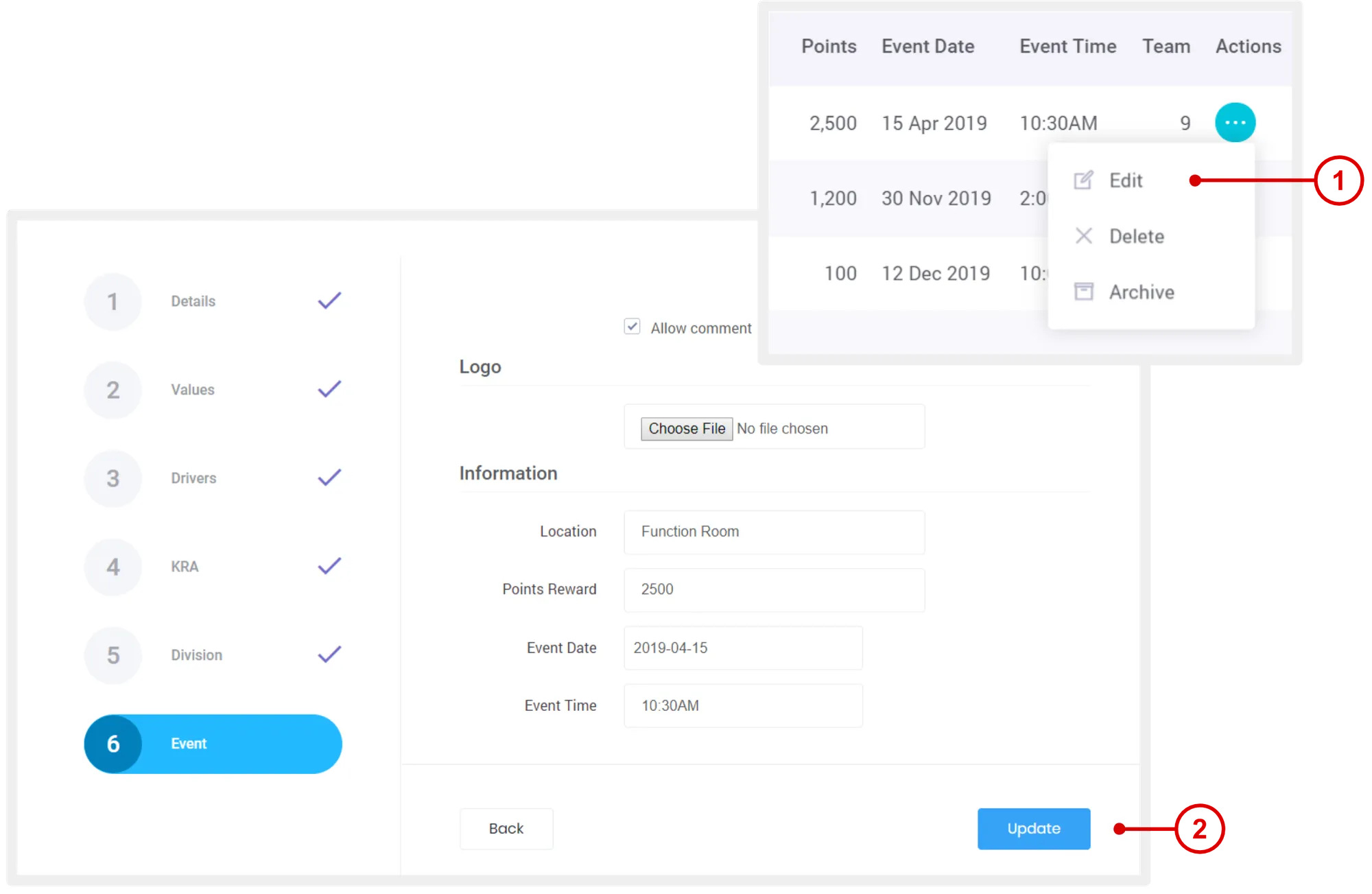
- On the Events page, under “Actions” column, click Edit.
- Make the necessary edits > go to step 6 and click Update to save changes.
View or Award Event Participants
- On the Events page, click on an event name.
- Scroll down to view Participants. Under the “Actions” column, click Attended or Absent.
Actions
- Attended: System auto allocates the rewards associated with the events to the member.
- Absent: Nothing happens.
Add or Remove Participants
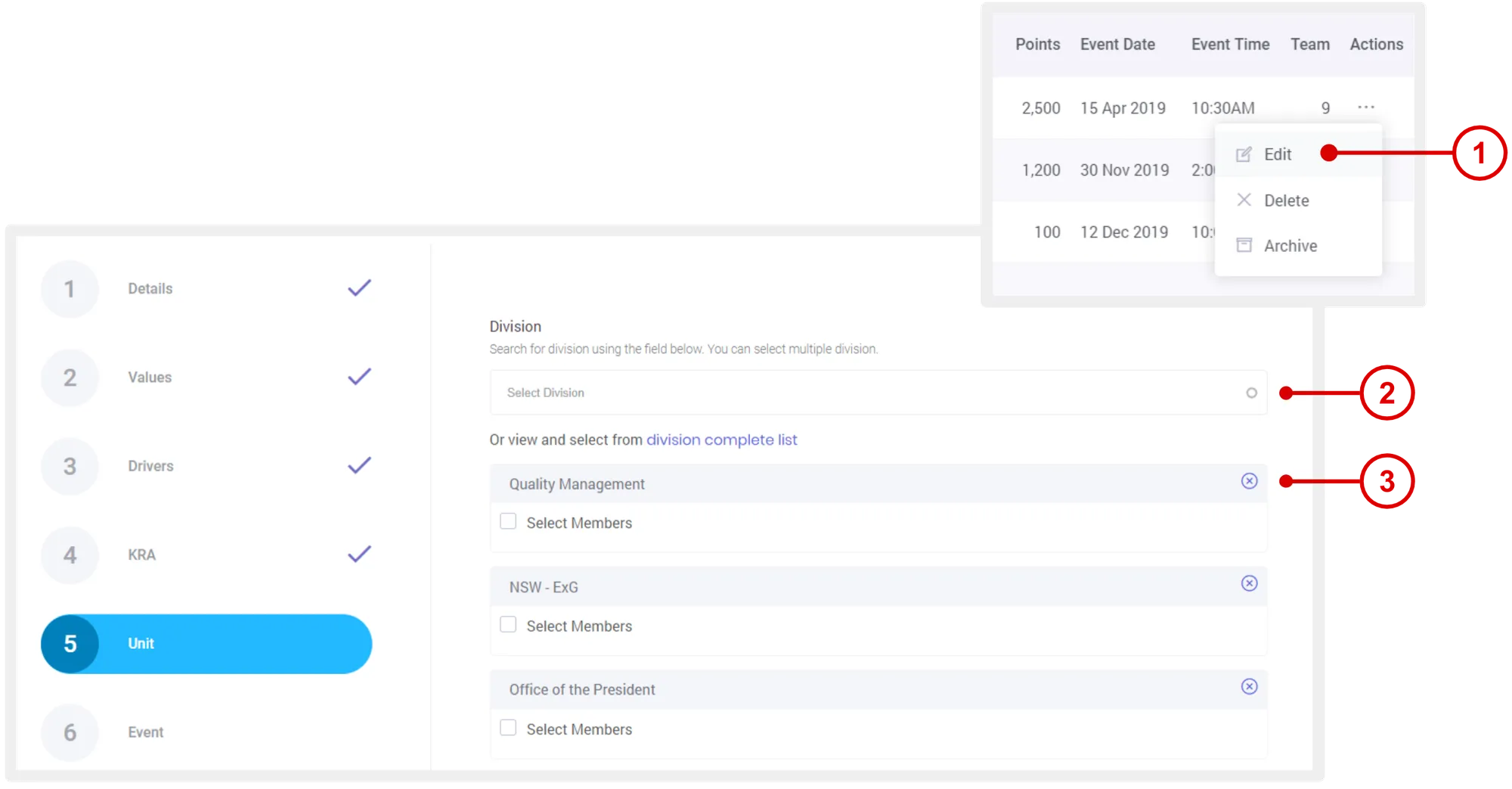
- On the Events page, under “Actions” column, click Edit.
- To add participants, click the Unit tab on the left > select a unit > go to step 6 and click Update to save changes.
- To remove participants, click Units tab on the left > in the list of units, click the button > go to step 6 and click Update to save changes.
Need more help?
For questions about setting up or running your program, email hello@rewardco.com.