Nomination Module
Create nomination categories with points or cash awards and an approver, approve or reject nominations, and nominate a member yourself.
Create Nomination Categories
-
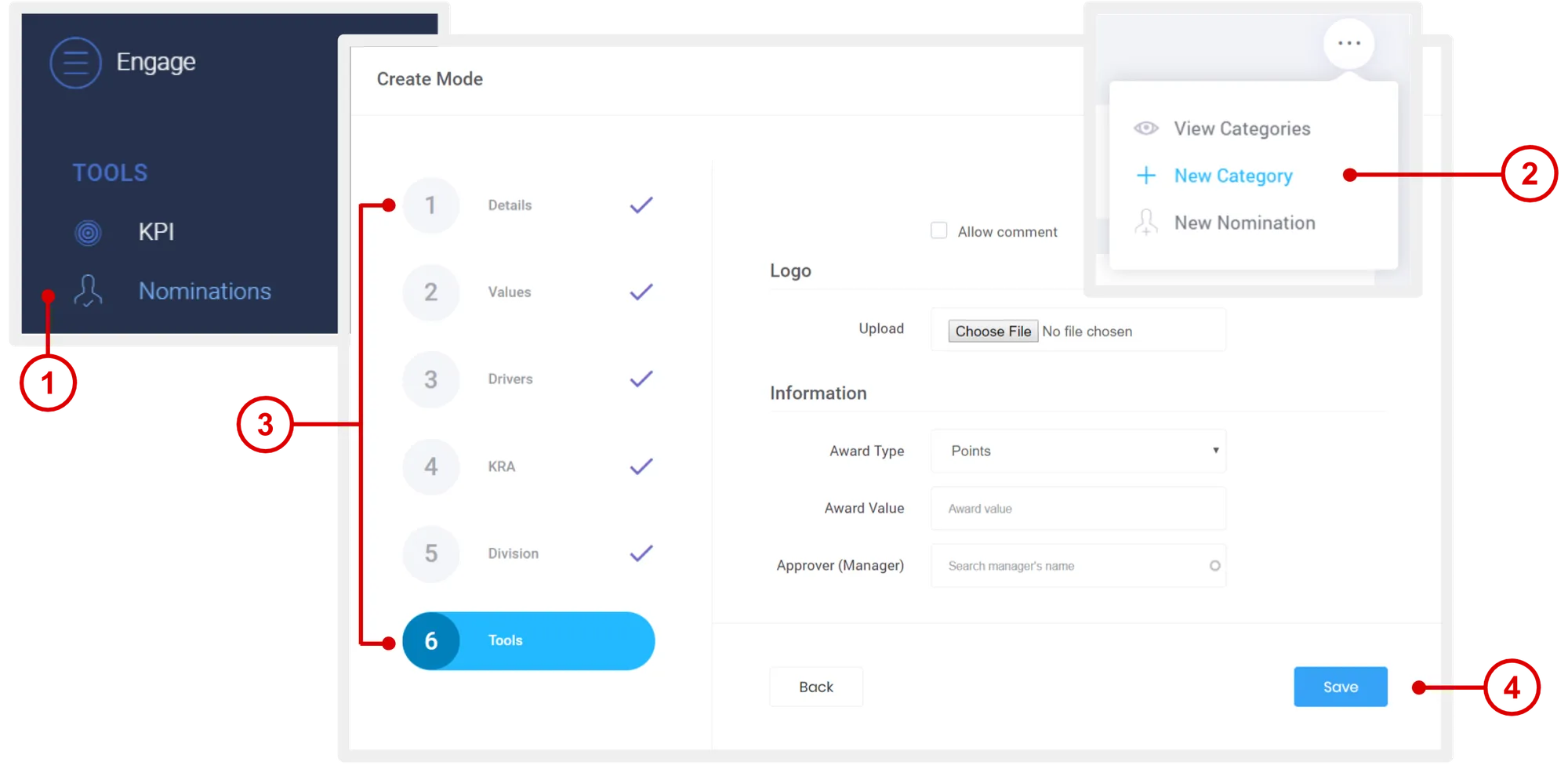
On the left navigation menu, click Nominations.
-
Mouse over the menu option and click + New Category.
-
Enter the necessary details.
-
Details: Title and description of the nomination category.
-
Values: Tie in your org context.
-
Drivers: Tie in your org context.
-
KRA: Tie in your org context.
-
Unit: Make this nomination category exclusive for specific groups or units.
-
Tools:
- Allow Comment: Check this box to allow commenting in the activity feed for members.
- Logo: Badge image (displayed on Nominations page for members).
- Award Type: Select Points or Cash.
- Award Value: Enter the value of the award.
- Approver (Manager): Assign a group manager to administer submitted nominations, including ability to approve.
-
-
Click Save.
Access Nominations
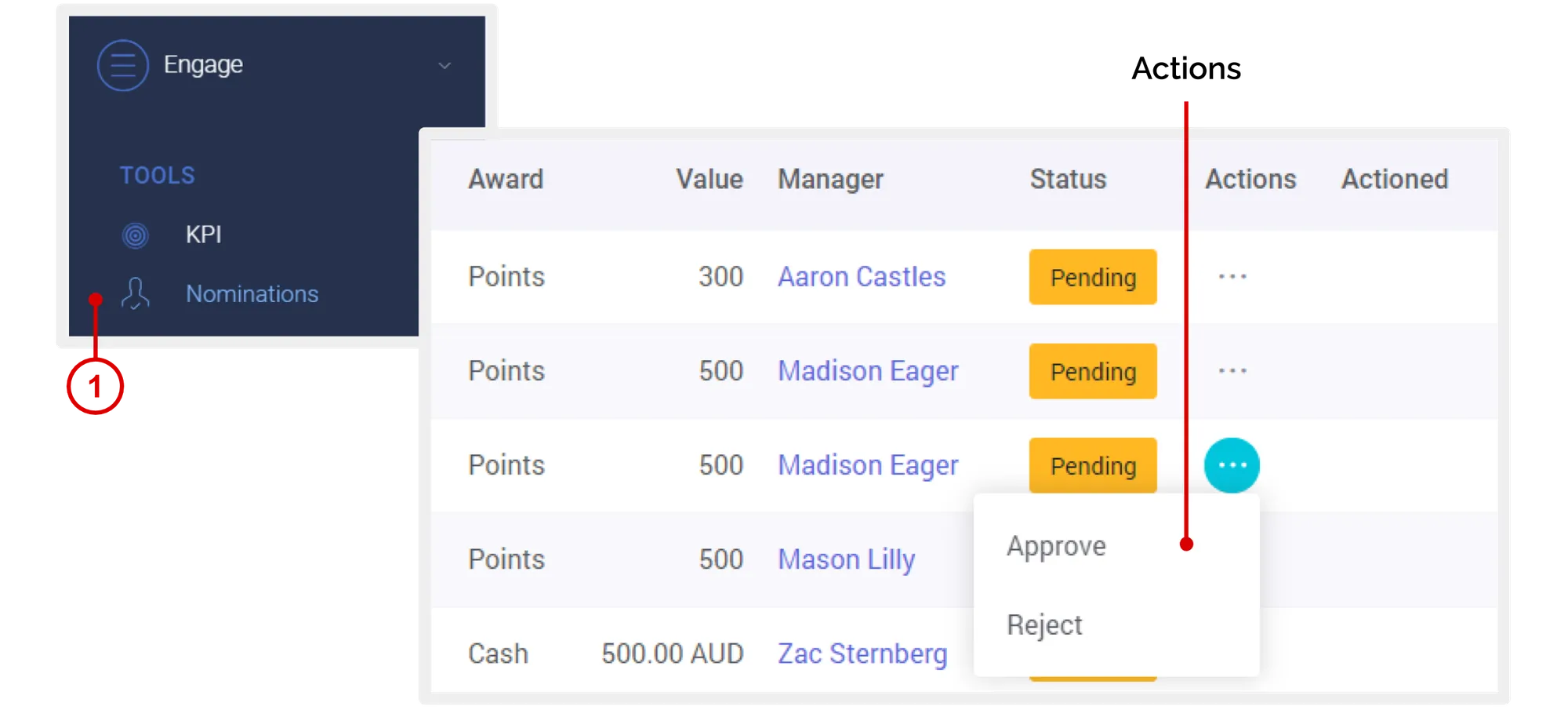
- On the left navigation menu, click Nominations.
List of all the nominees with their respective categories, award type and value is displayed on this page.
Approve or Reject Submitted Nominations
- On the Nominations page, under “Actions” column, click Approve or Reject.
Actions
- Approved: System auto allocates the rewards associated with the nomination category to the nominee.
- Rejected: Nothing happens.
Submit Nomination
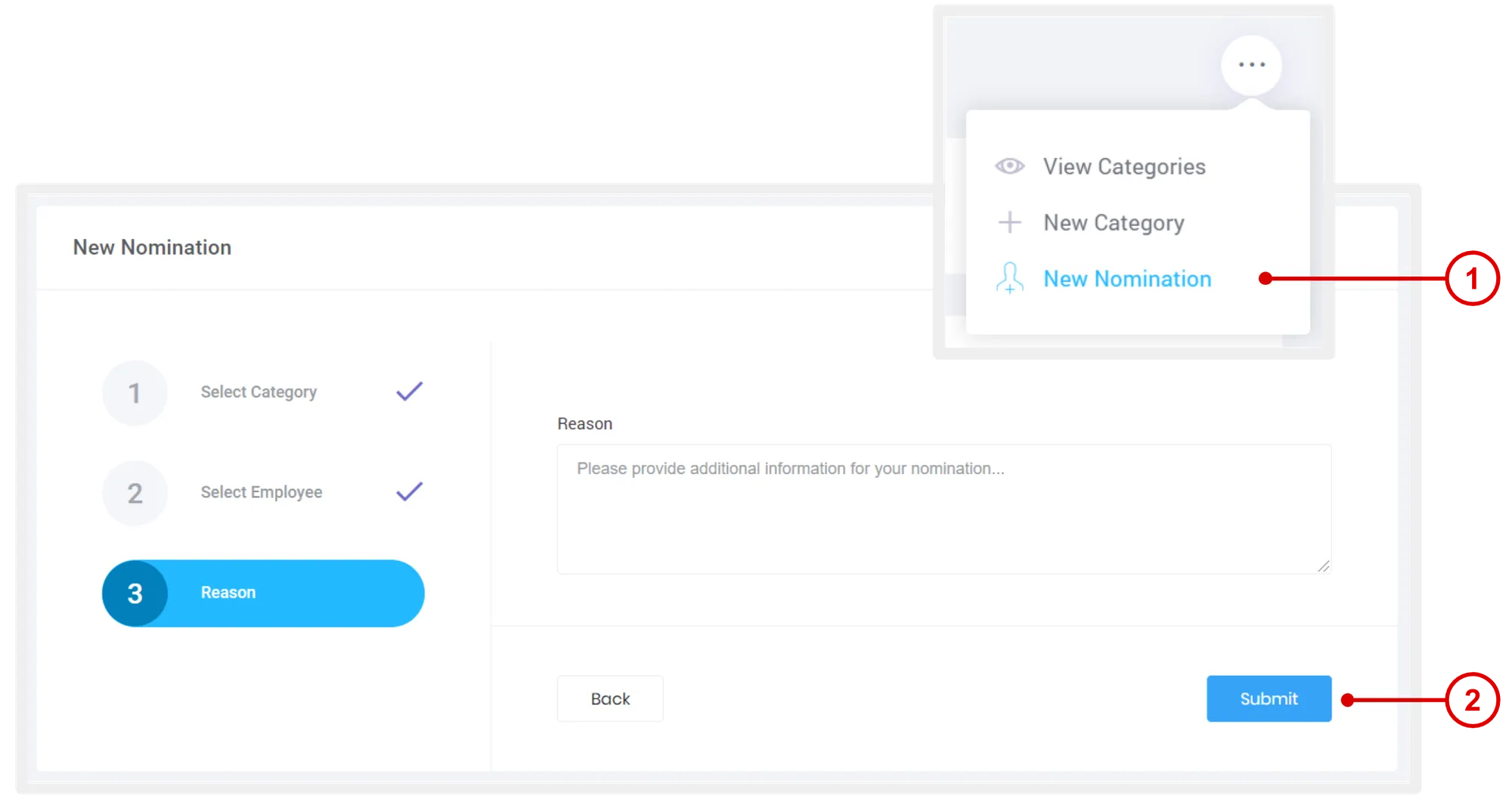
- On the Nominations page, mouse over the menu option and click New Nomination.
- Select a Nomination Category > select a member > enter a message > click Submit.
Need more help?
For questions about setting up or running your program, email hello@rewardco.com.